SEO

Google Search Console “Crawled – currently not indexed”: what to check
Open the URL in Search Console and compare the last crawl date with your changes. Then check whether Google can fetch the page and whether indexing is allowed. The guide explains where to look and what each result means.
You published the page, Google visited it, yet Search Console still says “Crawled – currently not indexed”. Another indexing request will not tell you why. Open the address in URL Inspection and check the last crawl date first. Google may not have seen your latest changes.
What the status means
Google fetched the page but has not added it to its index. Crawling and indexing are separate steps: downloading the HTML does not automatically make a page available in search results. The status alone neither identifies a cause nor proves that your website has a technical fault.
Use the Page indexing report to look for affected groups, such as articles, service pages or product categories. Use URL Inspection for the status of an individual address. The examples listed in the broader report may not include every URL with that status.
You do not need every address on a website indexed. Two links with different parameters, for instance, may open the same content. Focus on the main pages you want customers to find: useful service pages, categories, products and articles.
Inspect the address and check when Google visited
Paste the full page URL into Search Console’s inspection bar. Check the domain, protocol and any parameters after the question mark. Make sure the address from the report is the one you edited. If it redirects, inspect the destination separately.
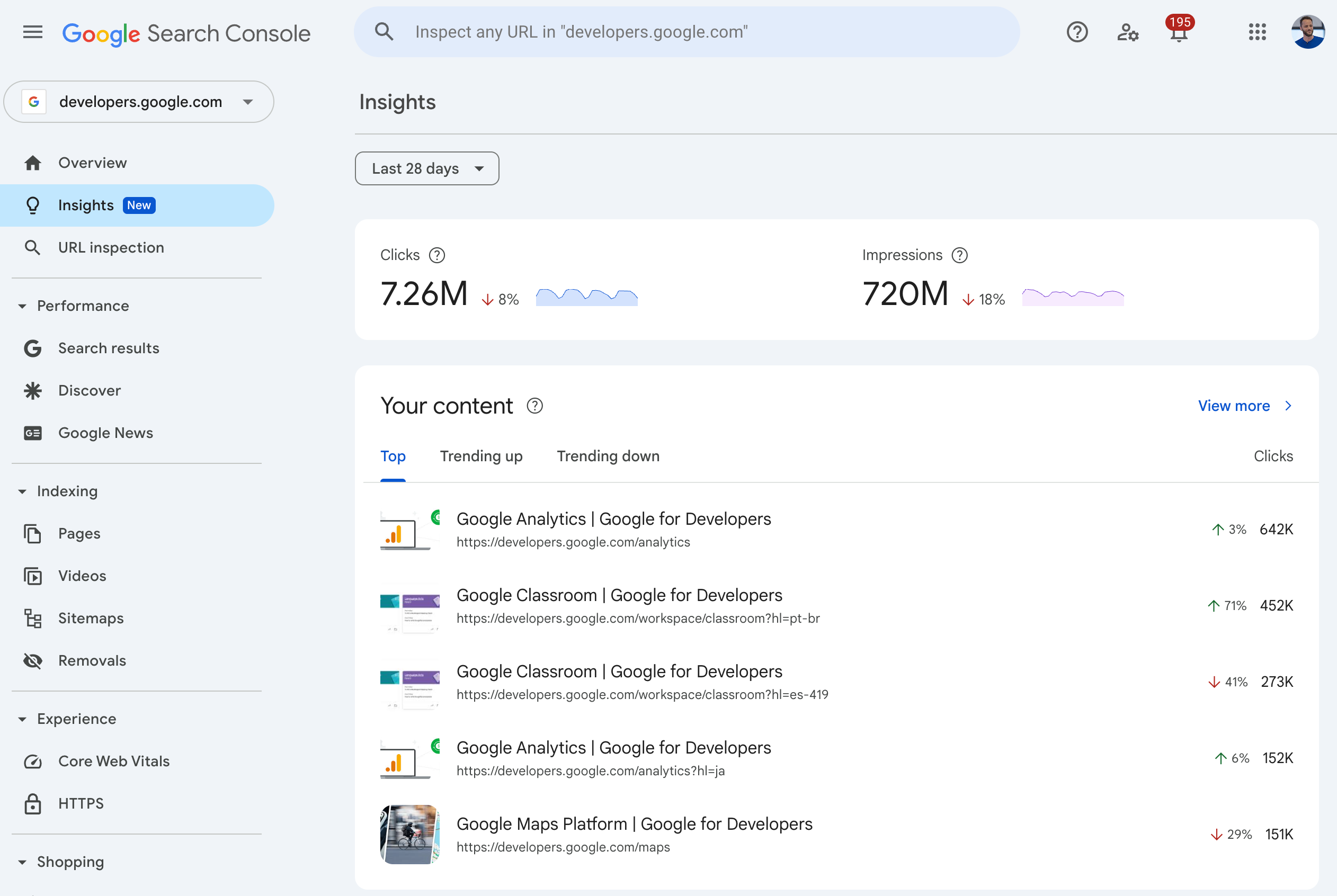
Enter the address in the Inspect any URL bar at the top. You can also select URL inspection in the left menu. This is Google’s publicly published 2025 example, with the Insights report open. Select the image to view it at full size. Source: Google.
Expand the indexing details and find the last crawl date. Compare it with the date of your changes. If Google visited before you removed an indexing restriction or repaired the page, the saved result may still describe the earlier version.
Then select Test live URL to check the page as it is now. This can show whether the inspection tool can currently fetch it. Google’s URL Inspection documentation explains the difference between the stored information and this live test.
Consider this teaching example: you removed an indexing restriction on Tuesday, but the last crawl was on Monday. The saved report cannot yet show the effect of that change. Run the live test to check whether the restriction has gone. If it has, changing the same setting again serves no purpose. This example explains the dates; it does not mean that the next crawl will necessarily lead to indexing.
Check access, fetching and indexing permission
In the crawl details, look for the fields that answer these three questions:
- Is crawling allowed? If not, check the robots.txt rule that blocks this address.
- Was the page fetch successful? If it failed, read the reported error. The page might require a login, return a server error or be inaccessible to Googlebot.
- Is indexing allowed? If not, check for an unintended noindex instruction, which tells a search engine to keep the page out of its index.
Change the setting that affects the page you want indexed. Do not remove every restriction across the website: some may intentionally protect utility sections from crawling or indexing. If a shared template causes the problem, check another page using that template after the repair.
Google’s minimum requirements include access for Googlebot, a successful HTTP 200 response and indexable content. These are listed in its technical requirements for Search. Meeting them makes a page eligible for indexing, but does not guarantee inclusion.
Also check whether robots.txt and noindex are working against your intention. If robots.txt stops Googlebot fetching the page, the crawler may never see the noindex instruction on it. One controls crawling; the other tells Google not to index a page it can fetch. They are not interchangeable settings.
See whether Google has selected another version
A canonical URL is the main address for identical or closely similar pages. In the stored inspection data, compare the user-declared canonical with the Google-selected canonical. These fields are not available in every result, so a missing value alone does not establish a problem.
If Google names a different address, open both pages. Do they show the same product, service and main text? Which version should appear in search? Choosing the main address over a copy with parameters may be entirely appropriate. If the two pages serve different purposes, check whether their template accidentally declares the same canonical for both.
Do not change the canonical simply to make the two fields match. Decide which page should represent the content and inspect that page’s status too. The live test cannot predict which canonical Google will select during indexing.
If there is no technical fault, compare the content
Open the closest related page on your website alongside this one. Can you explain why a visitor needs both? If only the heading and a few words differ, the second address may add little useful information.
For a teaching example, imagine two service pages with the same delivery description. One promises to explain delivery outside the city. A customer needs details for that situation: the area covered, how the price is calculated and any restrictions. Rearranging the general description will not answer those questions. Add those details only if they reflect the company’s actual service.
An article needs a separate reader question too. An explanation of a Search Console status and a guide to fixing a particular error can complement each other. Two articles with the same checks under different headings may work better as one complete guide.
This comparison can help you improve the site, but it does not reveal Google’s internal reason for leaving a page out of the index. Avoid labelling a page “poor quality” from this status alone, or adding paragraphs merely to increase its length.
What to do with each finding
| What you find | What to do |
|---|---|
| A page you need is blocked from crawling or returns an error | Correct the specific rule or server fault, then run the live URL test again. |
| The page has an unintended noindex instruction | Remove it from that page and check that its template does not add it back. |
| Google has selected a different canonical | Open the selected page and check whether it should represent this content in search. |
| Two pages contain almost the same information | Decide whether visitors need both. Keep a separate page when it answers a separate, useful question. |
| No fault is apparent and the page serves a useful purpose | Record the last crawl date and inspection results. Compare them with the new data when you next review the report. |
After making a repair, you can request indexing through URL Inspection. The tool has a daily quota; repeatedly submitting the same address does not replace fixing it. A successful live test also does not mean that the page is already indexed. It cannot test every condition that affects Google’s indexing decision.
If the status affects many important pages, choose one address from each type, such as a service page, category and article, and work through these checks. This can help expose a shared restriction or template error. If you need an SEO audit, keep those results: they give the reviewer specific pages and settings to investigate.
Share this article